
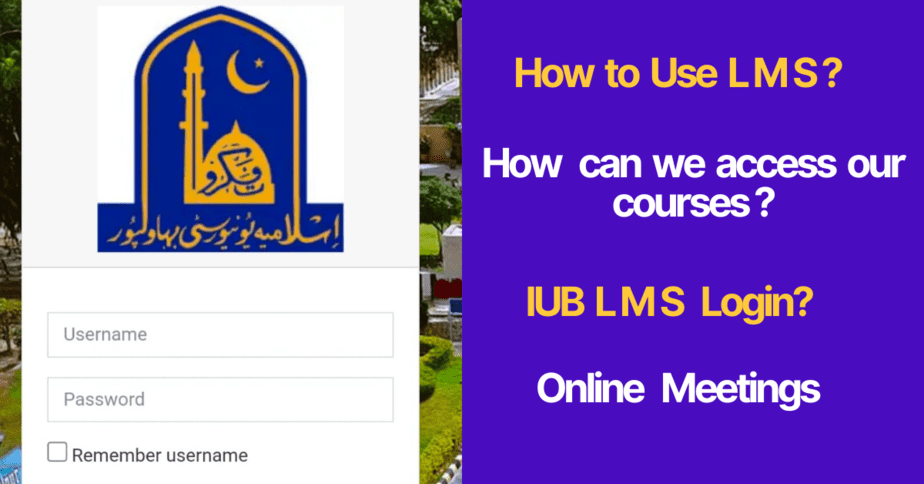
The IUB LMS — Islamia University Bahawalpur’s Learning Management System — is the official digital platform where IUB students access course materials, attend virtual classes, submit assignments, take online quizzes, and interact with faculty outside physical classroom hours. Since its expansion post-2020, the IUB LMS has become a core part of the academic experience at IUB, especially for students who commute from outside Bahawalpur or need flexible access to lecture content. Many students first hear about the IUB LMS during orientation week but never fully explore its features — and then scramble to figure out assignment submission deadlines or missed lecture recordings right before exams. This guide walks through the complete IUB LMS 2026 setup — from first login to every feature you need to use throughout the semester. Whether you are a new student getting started or an existing student who wants to use the LMS more effectively, this guide covers it all.
What Is IUB LMS — Islamia University Bahawalpur Learning Management System
The IUB LMS is the centralized e-learning platform that connects students, faculty, and academic content at Islamia University Bahawalpur in one digital environment. It operates as a separate layer from the My IUB E Portal — while the E Portal handles administrative functions like fee challans, roll number slips, and result checking, the IUB LMS handles purely academic content delivery and coursework interaction.
| Feature | IUB LMS | My IUB E Portal |
|---|---|---|
| Course Materials | ✅ Lecture slides, PDFs, videos | ❌ Not available |
| Assignment Submission | ✅ Upload assignments online | ❌ Not available |
| Online Quizzes | ✅ MCQ and descriptive quizzes | ❌ Not available |
| Virtual Classes / Zoom | ✅ Live session links posted here | ❌ Not available |
| Fee Challan | ❌ Not available | ✅ Download challan form |
| Exam Result | ❌ Not available | ✅ Semester result checking |
| Roll Number Slip | ❌ Not available | ✅ Download admit card |
| Merit List | ❌ Not available | ✅ Admission merit list |
It is built on Moodle — the same open-source platform used by hundreds of Pakistani and international universities. This means the interface is standardized and once you learn the basic navigation, you will find it intuitive. IUB customized the Moodle installation with its own branding, department structure, and course enrollment system linked to the IUB registration database.
Think of the IUB LMS as your virtual classroom and the My IUB E Portal as your administrative office — you need both, but for entirely different purposes. For E Portal login, result, and fee guide, see the My IUB E Portal 2026 page.
Takeaway: IUB LMS handles academic content — lectures, assignments, quizzes, virtual classes. My IUB E Portal handles administration — fee, result, roll number slip. Both are separate platforms with separate login credentials. Use LMS daily during the semester; use E Portal for administrative tasks.
LMS IUB Login 2026 — Step by Step Access to IUB Learning Management System
IUB LMS login is the most searched query on this page — and for good reason. Getting into the LMS for the first time, or recovering access after a password reset, can be confusing without a clear guide. Here is the exact step-by-step process for lms iub login in 2026.
| Step | Action | Notes |
|---|---|---|
| 1 | Open browser — go to IUB LMS URL | lms.iub.edu.pk — type directly, avoid third-party links |
| 2 | Click “Log In” button on homepage | Top right corner of LMS homepage |
| 3 | Enter your IUB username | Usually your IUB registration number or student ID |
| 4 | Enter your password | Default password given at enrollment — change after first login |
| 5 | Click “Log In” | Dashboard loads — shows all enrolled courses |
| 6 | Update profile and change password | Go to your name (top right) → Profile → Edit Profile |
For new students, IUB LMS login credentials are issued during the enrollment and orientation process — your department coordinator or class representative will provide the initial username and default password. If you joined mid-semester or missed orientation, contact the IUB IT Help Desk at the main campus or your departmental office to get credentials issued.
The lms iub login URL is lms.iub.edu.pk — this is different from the My IUB E Portal URL (my.iub.edu.pk). Students frequently confuse the two and try LMS credentials on the E Portal or vice versa. They are separate systems with separate usernames and passwords — keep them noted distinctly.
| Login Problem | Likely Cause | Solution |
|---|---|---|
| Username not recognized | Not yet enrolled in LMS / credentials not issued | Contact IT Help Desk or department coordinator |
| Wrong password error | Using E Portal password on LMS, or default not changed | Click “Forgot Password” → reset via registered email |
| No courses visible after login | Course enrollment not yet processed | Wait 48 hours after semester start, then contact faculty |
| Account locked | Multiple failed login attempts | Contact IT Help Desk to unlock — do not keep trying |
| Mobile login not working | Browser cache issue or outdated app | Clear browser cache or use Moodle app on Android/iOS |
Takeaway: IUB LMS login URL is lms.iub.edu.pk — different from my.iub.edu.pk (E Portal). Login with IUB registration number as username. Default password issued at enrollment — change it immediately. For login issues, contact IT Help Desk at main campus or use the “Forgot Password” option on the LMS login page.
My IUB LMS Dashboard — Navigating Courses, Notifications and Your Academic Calendar
After successful IUB LMS login, the dashboard is your central hub. Understanding what each section shows you helps avoid missing assignment deadlines, quiz openings, and live class links — all of which are communicated through the my IUB LMS dashboard.
| Dashboard Section | What It Shows | How to Use It |
|---|---|---|
| My Courses | All courses enrolled for current semester | Click any course to enter its content page |
| Upcoming Events | Assignment due dates, quiz openings, exam dates | Check daily — deadlines auto-populate here |
| Recent Activity | New materials posted by faculty, announcements | Scroll this first — tells you what changed since last visit |
| Calendar | Month view of all academic events across courses | Click any date to see what’s due — useful for weekly planning |
| Messages | Direct messages from faculty or classmates | Check weekly — some faculty send assignment clarifications here |
| Notifications Bell | Alerts for new posts, grades returned, quiz availability | Enable email notifications in profile settings for instant alerts |
The single most important my IUB LMS feature students underuse is email notifications. By default, the IUB LMS sends notifications to your registered email when faculty post new content or announce a quiz. Many students disable these without realizing and miss assignment postings. Go to Profile → Preferences → Notification Preferences → enable “Email” for all academic activity types.
Takeaway: Dashboard Upcoming Events section is your daily priority check — shows all deadlines across all courses in one view. Enable email notifications in Profile settings to never miss a faculty announcement or new assignment posting.
IUB LMS Course Materials — Accessing Lecture Slides, Recorded Videos and Study Resources
The core function of this system is delivering course content — and how well faculty use it varies by department. Here is what the IUB LMS course material section typically contains and how to access it efficiently.
| Content Type | Format on IUB LMS | Access Notes |
|---|---|---|
| Lecture Slides | PDF, PowerPoint files | Download and save locally — available until semester ends |
| Recorded Lectures | Video files or YouTube/Google Drive links | Stream or download — check if download is enabled per file |
| Reading Material | PDF books, journal articles, handouts | Some are restricted to campus network — use IUB Wi-Fi or VPN |
| Past Papers | PDF — where faculty upload them | Not all faculty upload — check department notice board if not on LMS |
| Lab Manuals | PDF / Word documents | Typically uploaded at semester start — download Week 1 |
| Reference Books | Linked to IUB e-library or external resource | Requires separate e-library login in some cases |
A practical habit for the the course material section: download everything from Week 1 rather than accessing it online each time. LMS content is available throughout the semester but occasionally faculty restructure course sections mid-semester, which can temporarily make materials harder to locate. Having local copies ensures you always have access to study material regardless of internet availability or portal maintenance windows.
Takeaway: Download course materials in Week 1 and keep local copies — do not rely solely on LMS access during exam season when portal traffic is high. Check “Recent Activity” on your dashboard when you log in to catch any new material uploaded since your last visit.
IUB LMS Assignment Submission — How to Upload and What Happens After Submission
Assignment submission through the IUB LMS is the standard method for most coursework at Islamia University Bahawalpur — and missing the submission window or submitting incorrectly can mean zero marks even if the work is excellent. Here is the exact process.
| Step | Action | Critical Note |
|---|---|---|
| 1 | Login to IUB LMS → go to your course | Use lms.iub.edu.pk — not E Portal |
| 2 | Find the Assignment activity in course content | Shows due date and submission status |
| 3 | Click “Add Submission” | Upload your file OR type in text box depending on assignment type |
| 4 | Upload your file | Max file size typically 20MB — compress large files if needed |
| 5 | Click “Save Changes” | Draft saved but NOT submitted yet |
| 6 | Click “Submit Assignment” to finalize | ⚠️ After this, editing is locked — submit only when complete |
| 7 | Verify submission confirmation screen | Status must say “Submitted for grading” — not “Draft” |
The most common IUB LMS assignment mistake: clicking “Save Changes” and assuming the assignment is submitted. “Save Changes” creates a draft — the assignment is only formally submitted after you click “Submit Assignment.” Faculty grading dashboards only show submitted assignments, not drafts. A draft left past the deadline shows as a missed submission — grades cannot be given for draft-only submissions.
Late submission policy on the IUB LMS: most faculty configure assignment activities to close submissions after the deadline. Once the window closes, the upload button disappears. Some faculty allow late submissions with penalty (typically -10% to -20% per day) — check the assignment instructions for the faculty’s specific late policy before assuming no grace period exists.
Takeaway: Always click “Submit Assignment” — not just “Save Changes.” Verify the status says “Submitted for grading.” Submit 2–3 hours before deadline as buffer — last-minute uploads sometimes fail due to server load. Once submitted, editing is locked — review your work before final submission.
IUB LMS Online Quizzes — How to Attempt, Time Limits and Technical Rules
Online quizzes on the IUB LMS are timed, closed-window examinations — very different from submitting an assignment. Understanding the quiz system on lms iub before your first attempt prevents technical issues from costing marks.
| Quiz Feature | How It Works on IUB LMS |
|---|---|
| Opening Window | Quiz opens and closes at set times — only accessible in that window |
| Time Limit | Countdown timer visible on screen — auto-submits when time expires |
| Attempts Allowed | Usually 1 attempt — check quiz settings before starting |
| Question Randomization | Most faculty enable this — your questions may differ from classmates |
| Internet Disconnection | Progress auto-saves every 60–120 seconds — reconnect quickly |
| Result Visibility | Some show Results immediately, others after faculty review |
| Navigation | Can jump between questions — review button at end before final submit |
Three IUB LMS quiz rules that cost students marks every semester: first, never start a quiz without a stable internet connection — the auto-save feature reduces risk but a disconnection in the last 30 seconds of a timed quiz can result in partial submission. Second, the quiz clock does not pause for technical issues on your end — start early in the opening window so you have time to resolve problems if they occur. Third, always click “Submit All and Finish” at the end of the quiz — answers saved but not submitted are treated as unanswered.
Takeaway: IUB LMS quizzes auto-submit when time runs out — but you must still click “Submit All and Finish” if completing before time. Start quizzes early in the opening window — never at the last hour. Stable internet is mandatory — switch to mobile data backup if your Wi-Fi is unreliable.
LMS IUB E Portal Integration — How the Two Systems Connect
Students frequently search for lms iub e portal as a single concept — and understanding how the IUB LMS and My IUB E Portal connect (and where they remain separate) helps you navigate both systems without confusion.
| Function | Where to Go | URL |
|---|---|---|
| Course materials, assignments, quizzes | IUB LMS | lms.iub.edu.pk |
| Fee challan download | My IUB E Portal | my.iub.edu.pk |
| Semester result | My IUB E Portal | my.iub.edu.pk |
| Roll number slip | My IUB E Portal | my.iub.edu.pk |
| Merit list status | My IUB E Portal | my.iub.edu.pk |
| Virtual class links (Zoom/Meet) | IUB LMS (course page) | lms.iub.edu.pk |
| Attendance record | IUB LMS (some departments) or E Portal | Varies by department |
| Faculty contact | IUB LMS messaging | lms.iub.edu.pk |
The systems share your student identity — same registration number — but have separate login credentials and separate passwords. Changes to one do not affect t